Turn Kindle Books You Own
into OCR Text + PDF
BookHalo turns pages, captures visible content, runs OCR, and downloads a ZIP with reading-note text and a reference PDF. Ready for NotebookLM, ChatGPT, Claude, and Obsidian.
Demo
Local OCR in Six Languages
English, Portuguese, Spanish, French, German, and Italian text recognition normally runs locally in Chrome, with server fallback only if local OCR fails.
Simple Operation
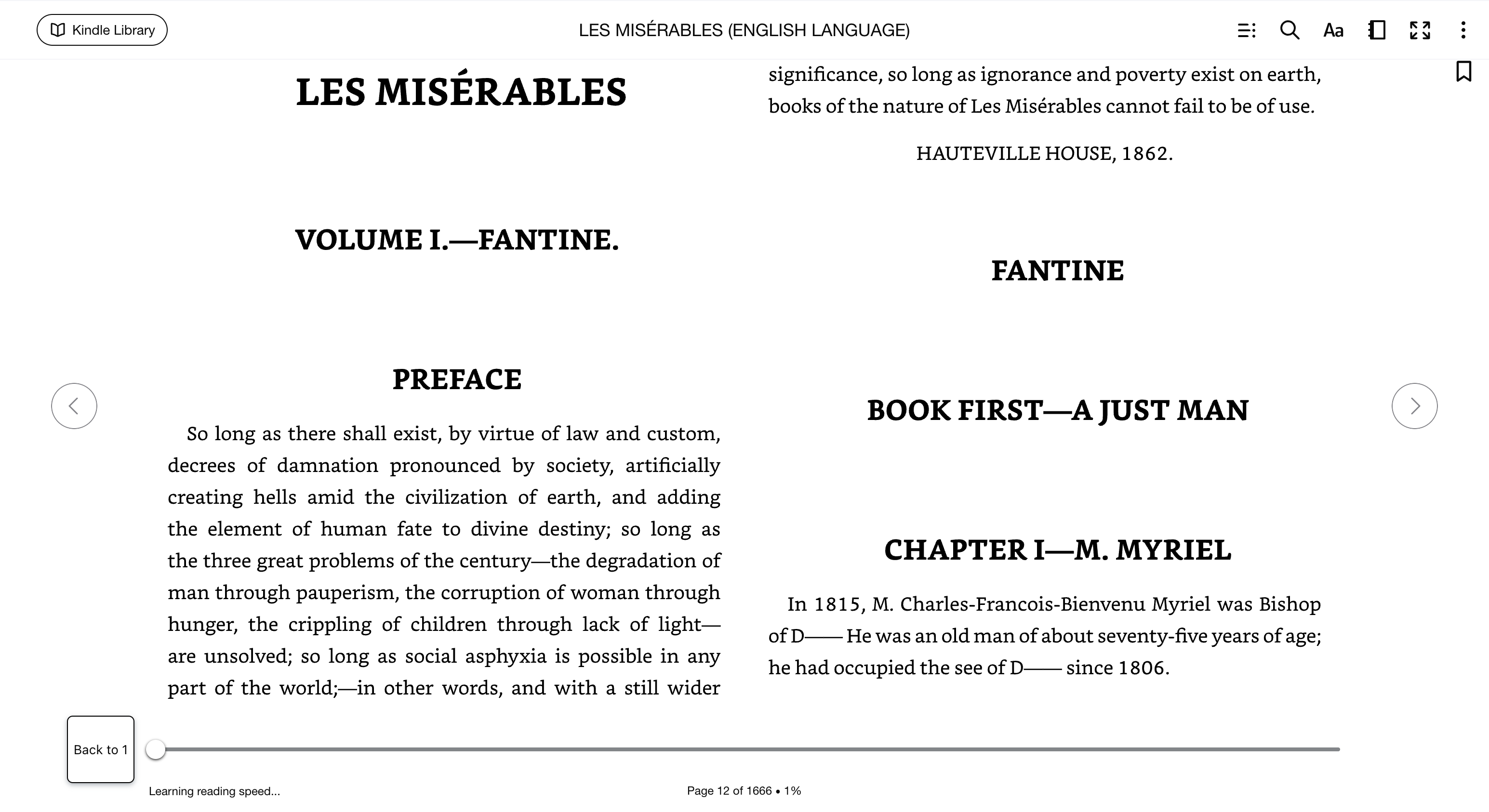
Open a book in Kindle Cloud Reader, click the extension button, and BookHalo handles page turning, capture, and OCR in one flow.
AI-Ready Text + Reference PDF
Download an OCR-created full_text.txt file and a reference PDF bundled as a ZIP file.
Two-Page Spread Support
Automatically splits two-page spreads into individual pages, maintaining correct page order.
Optimized Japanese OCR
Japanese books use BookHalo's server OCR for vertical and horizontal printed text.
Validated on Real Books
A full-run validation processed 3,687 real Kindle screens across six locally supported OCR languages.
Pricing
Up to 10 books per month, 1,000 pages each. Subscribe from within the Chrome extension after email verification.
Free tier: up to 20 books per month, 3 pages each. Install and try it out!
Guides
Use OCR-created reading-note text with NotebookLM, ChatGPT, or Claude for personal study and review.
How to use Kindle books in NotebookLM
Create reading-note TXT/PDF with BookHalo, then use the text in NotebookLM for personal summaries, Q&A, and audio overviews.
Kindle to AI reading workflows
Find workflows for ChatGPT, Claude, plain text notes, Kindle Cloud Reader OCR, and Japanese Kindle books.
How to Use
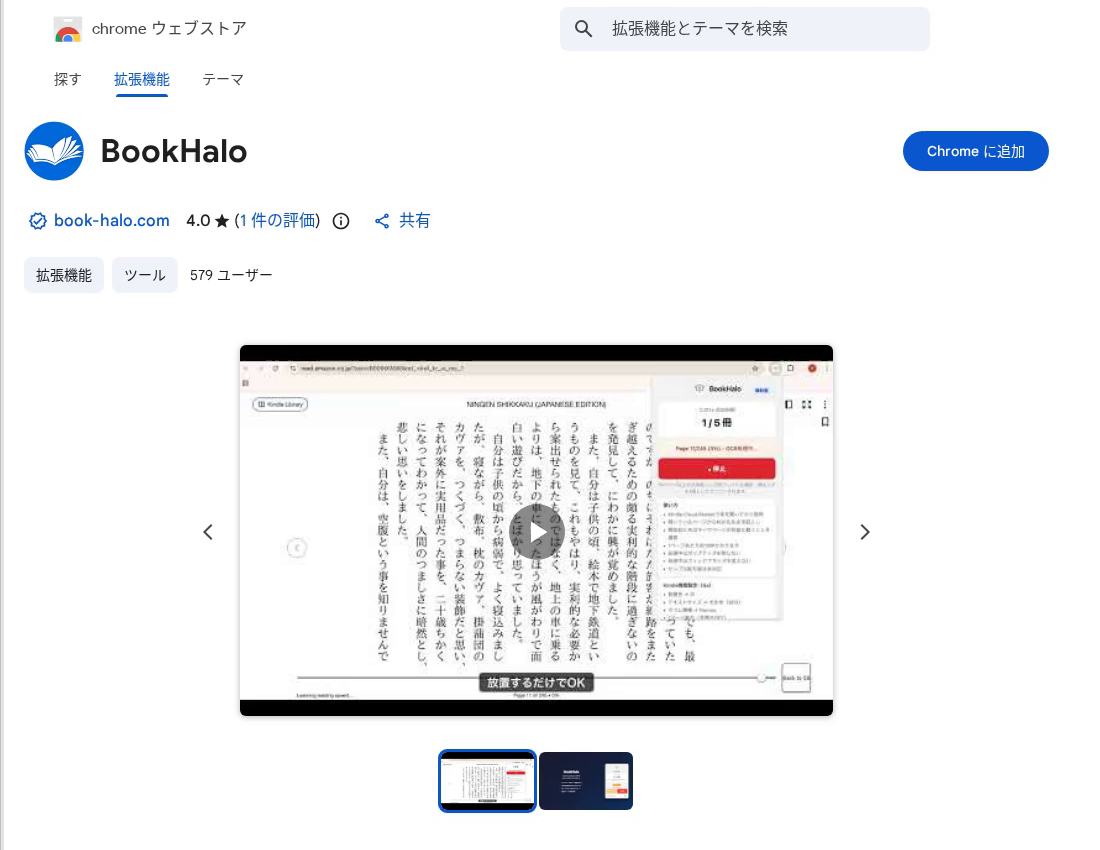
Install from Chrome Web Store
Click the button below to open the BookHalo store page, then click "Add to Chrome" to install.
Open Chrome Web Store
Pin the Extension
Click the puzzle icon in Chrome's toolbar, then click the pin icon next to BookHalo. This keeps it accessible with one click.

Open a Book on Kindle Cloud Reader
Go to read.amazon.com or your local Kindle Cloud Reader / Kindle for Web domain in your browser and open the book you want to use for personal reading notes. Use the browser version, not the Kindle app.

Sign Up / Log In with Email
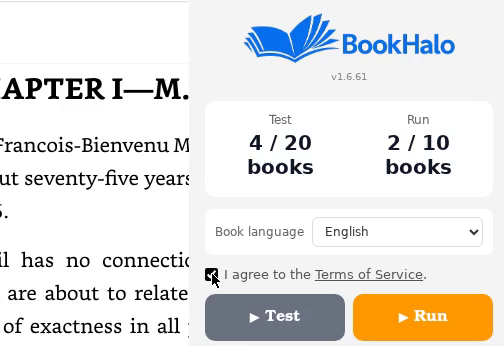
Click the BookHalo icon to open the popup, enter your email address, and log in with the verification code.

Click Start to Begin
Press the button and BookHalo will automatically turn pages, capture screenshots, and run OCR. When finished, a ZIP file with OCR text and a reference PDF is downloaded automatically.

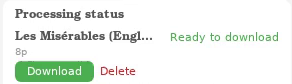
Download & Review the ZIP
Once processing is complete, the results are automatically downloaded as a ZIP file with AI-ready text.
Downloaded files:
- Find "Book Title.zip" in your browser's download bar or Downloads folder
- Right-click → "Extract All" to unzip (on Mac, double-click)
Inside the folder:
- full_text.txt — OCR-created reading-note text
- book.pdf — Reference PDF for processed pages
Use the text file with NotebookLM or ChatGPT for personal reading notes and study support.
Important Notes
- Do not switch tabs or windows while processing. It may affect screenshot capture.
- Kindle sample/preview books are not supported.
- Desktop Google Chrome (or Chromium-based browser) is required.
Terms & Disclaimer
- Personal use only. Commercial use, redistribution, resale, or public sharing of outputs is strictly prohibited.
- No misuse. Use for copyright infringement is prohibited. This tool is intended only for personal reading notes and study support for books you can lawfully access.
- To discourage unauthorized sharing, output files include a traceable Export ID.
- BookHalo is not an official, affiliated, or endorsed Amazon or Kindle tool. It is not intended to remove DRM, bypass login or purchase restrictions, or access content you cannot already view.
- The developer assumes no liability for any damages arising from the use of this tool.
- Please comply with Amazon's Terms of Service, the terms of any AI service you use, and applicable copyright laws in your jurisdiction.